
Dealers that have an account with GSF Parts can integrate their account with DragonDMS and benefit from automatically created parts quotes, and orders directly from an Estimate, Booking or Service record.
Setup
Step 1: Contact our support team to request the GSF parts integration be enabled. They will ask you to for your GSF Account number (this can be accessed by logging into your GSF Account).
Step 2: In DragonDMS you need to select the supplier to be used for the GSF quotes and orders, and setup your standard markup to calculate the selling pricing.
GSF Supplier: Settings > Parts > Sales & Purchase > General > GSF Supplier (this will be used for all quotes and orders created within DragonDMS from the GSF integration).
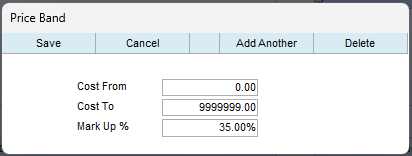
Selling markup: Setup parts price banding, go to Settings > Parts > Settings > Prices > Default Selling Price Banding and click on New Band.
Enter the cost price from and to, and the mark up %, then click on Save. If you have a standard markup % then set as below:
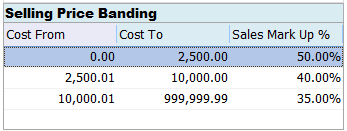
If you want to setup multiple mark up %, click Add Another and create different price bands.
Using the GSF Integration
The GSF parts integrations uses the Stock Parts section of DragonDMS, by automatically creating a parts quote and adding the parts to the service / booking / estimate.
The parts quote can be turned into an order with one click, and when the parts arrive onsite the order can be received. Receiving the order will mark the supplier invoice as ready to be posted to Sage, or included on Xero export reports.
Step One: Open an Estimate, Booking or Service record, and go to Job Items > Parts and click on Add Stock Parts, then click on GSF Car Parts.
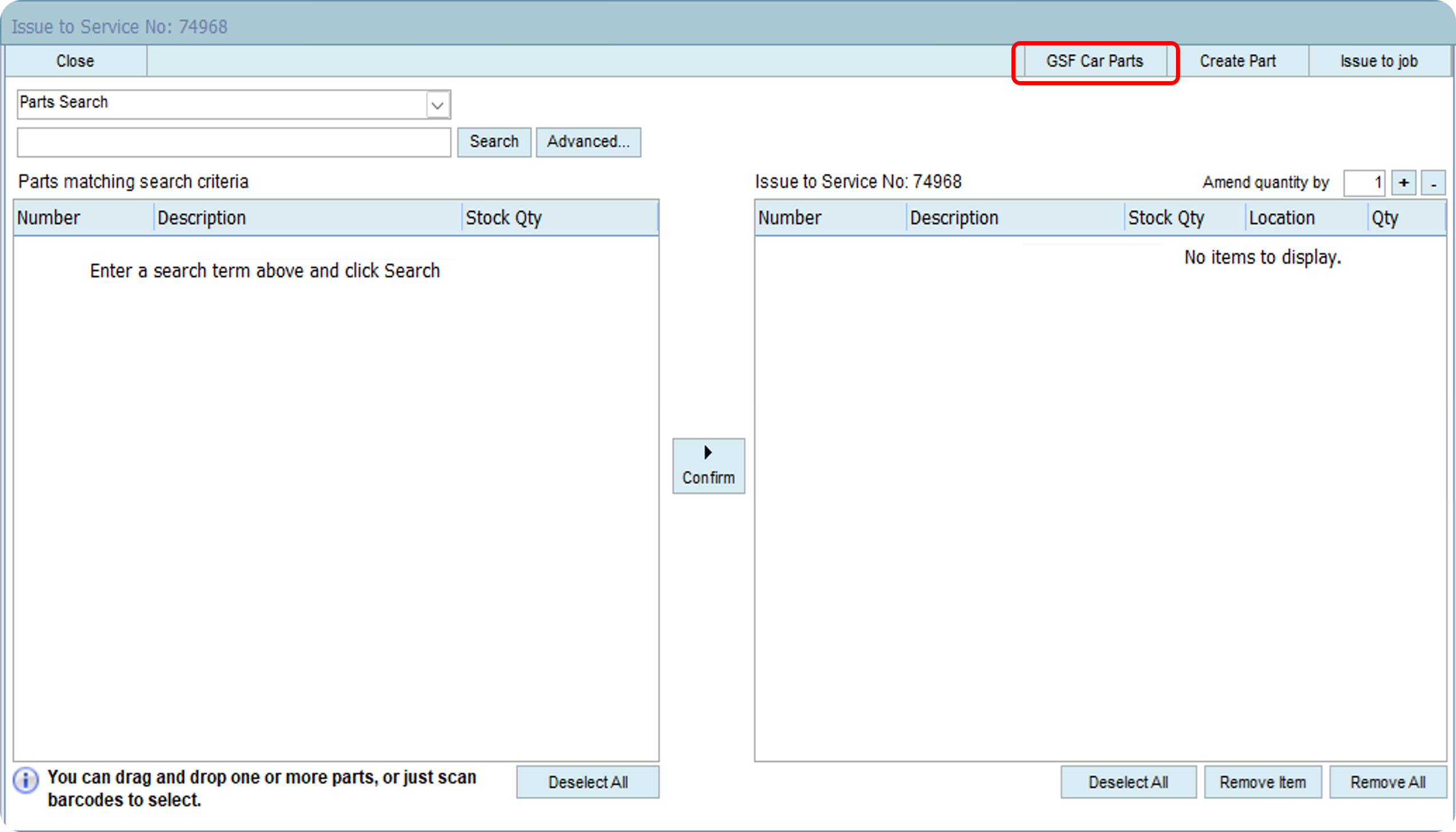
This will take you to the GSF Car Parts portal, where you can search for parts specific to the vehicle, and add them to your basket.
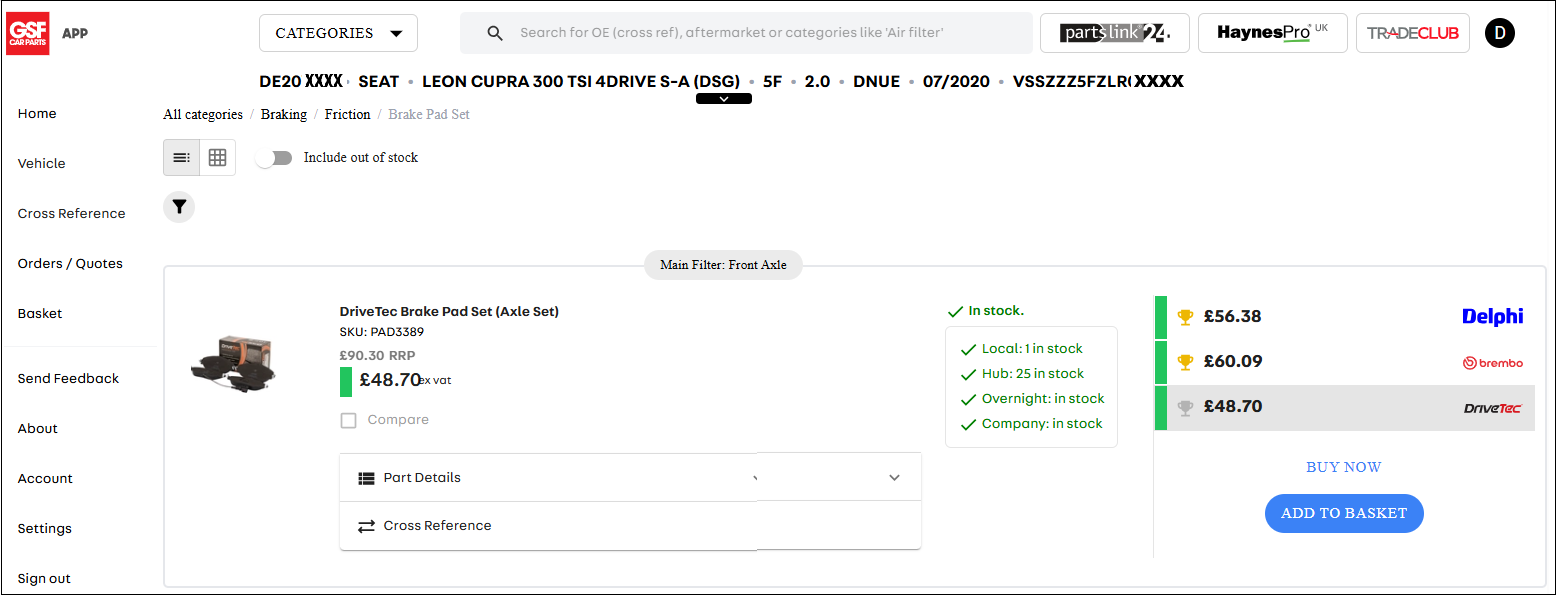
Once you have selected all your parts click on Basket and review.
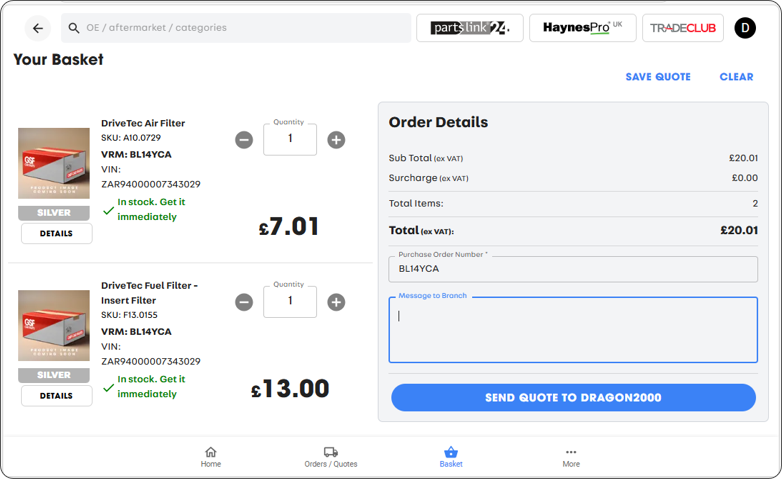
Click on Send Quote to Dragon2000, you can then close the browser window and go back to DragonDMS.
You will need to refresh the parts screen of the job you are in, to do this, click on the Labour tab and back to the Parts tab.
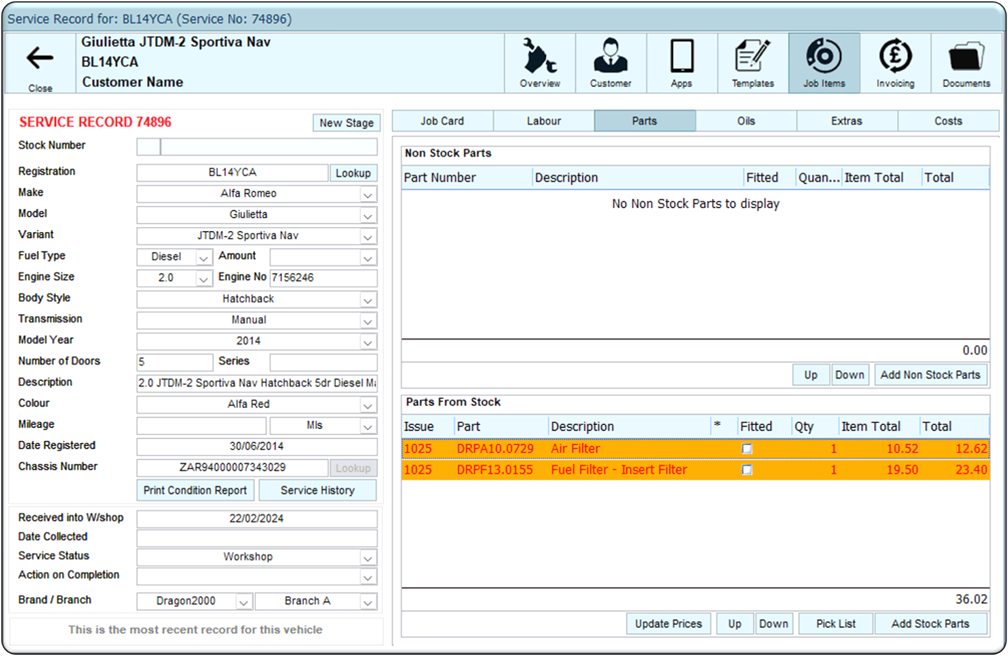
The parts quoted from GSF will now be listed on the job, with the selling price calculated using the price banding markup.
In the Parts Module, go to Orders and the GSF quote will be listed. To place the order with GSF, open the quote and click on Confirm Order
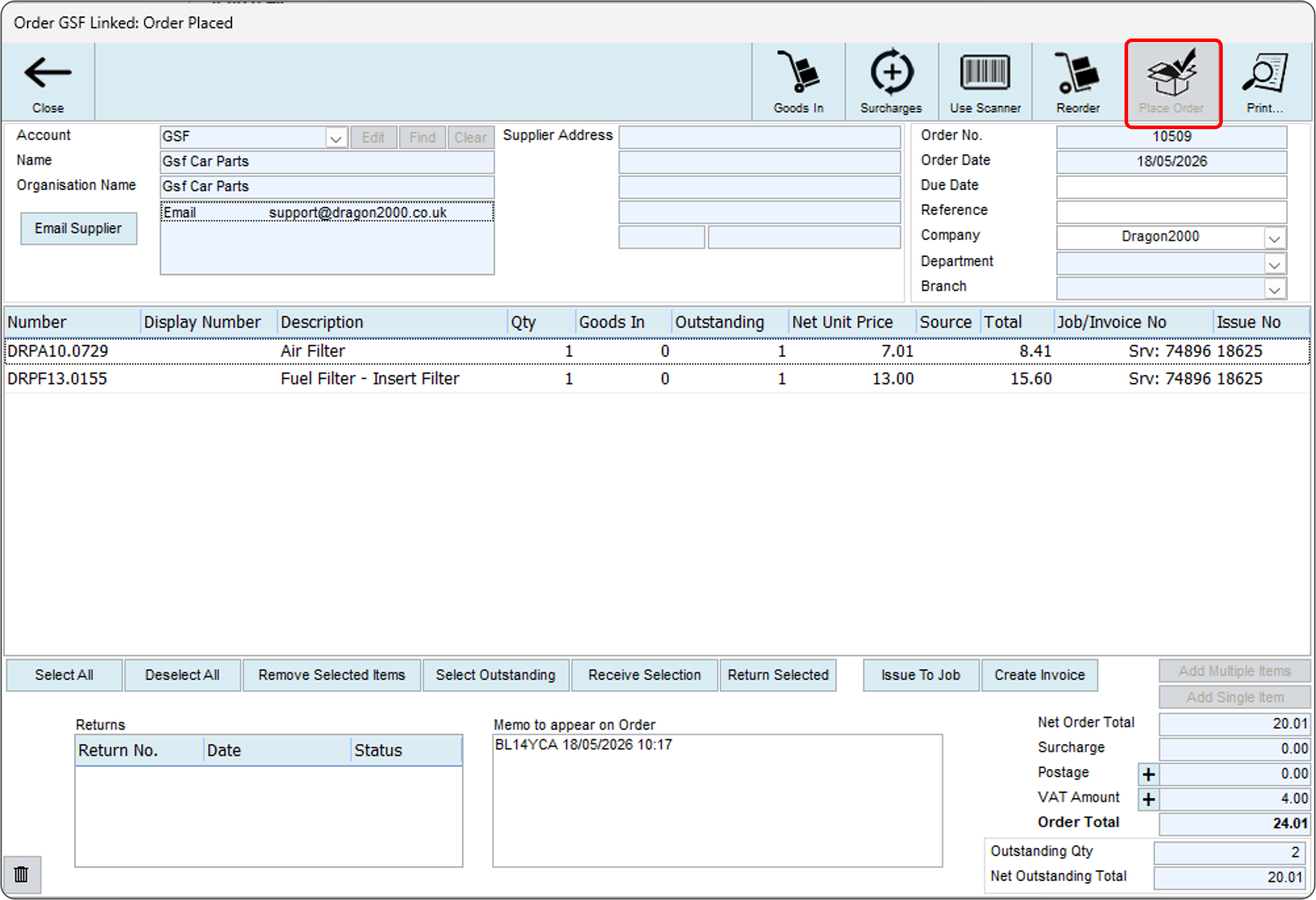
GSF will then despatch the parts to you, when the parts arrive on site, open the parts order and select each of the lines on the order and click on Receive Selection.
Parts Statuses
As you go through the above process the part status indicator on your jobs will update to show if the parts are quoted, ordered or received.

Orange = quoted
Turquoise = ordered
Green = received
GSF Parts Integration Video
For more general information about Parts ordering click here.