
Signable Integration
The integration between Dragon2000 and Signable allows you to send sales order forms and invoices to customers for digital signing. Once signed, you will be notified by email and a note will be recorded against the Contact Record.
Digital Signatures can be sent for Vehicle Sales Order Forms and Vehicle Sales Invoices.
Each digital envelope send will incur a charge – currently 50p, this will be deducted from the Cash Wallet.
Setting up Signable Digital Documents
Step 1: Getting a Signable Account
To be able to use this integration you will require an Signable account and credit in your cash wallet. Please contact our sales team on 01327 222 333 or email sales@dragon2000.co.uk to set this up.
You will be asked to give us the email address that we can use to setup your account. Once your Signable account has been setup, you can login to your Signable account – Login – Signable using the email address that you provided.
When you first login you need to click on Forgot Password, and reset your password.
Step 2: Sending a Digital Signature form
Find the Sales Order Form or Sales Invoice that you wish to send, then click print. You will need to view the order form or invoice to be able to select the Digital Signature option.

A message will appear asking you to confirm the customer’s email address:
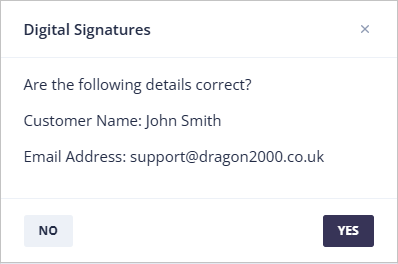
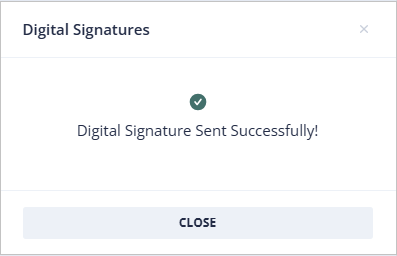
Clicking Yes will send the form, and you will then see a confirmation message as below:
The customer will receive an email like this.
*You can replace the Signable logo with your own logo – see section below on Branding.

At the bottom of the document the customer will be directed to name and sign the documents.

Once the customer has signed all the attached documents, they need to click on Submit. A copy of the completed signed documents will be emailed to both the Dealer and the Customer.
Step 3: Additional pdf documents – Optional
There is an option for you to upload your own documents to be signed along with the Invoice that you are sending. An example would be your Terms & Conditions.
To add your own pdf documents go to Settings > System >Attachments > Digital Signatures.
Click on New Attachment and browse for the pdf document, then indicate if you want the customer to sign the document. Signed documents will be included in the digital envelope and un-signed documents will be added as an attachment to the email that is sent.
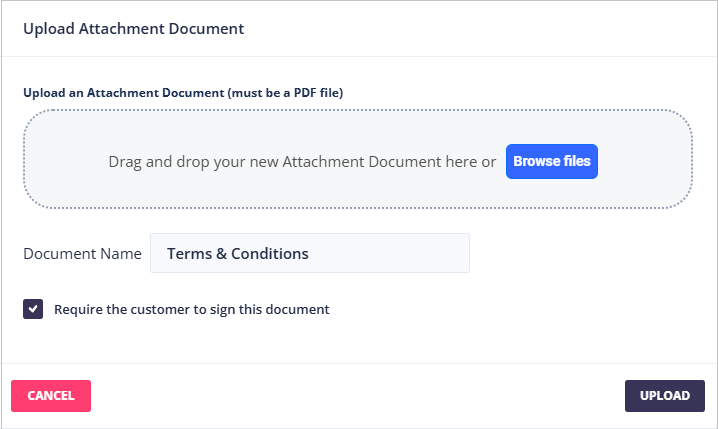
Once uploaded, you can choose which DragonDMS document to link them too.
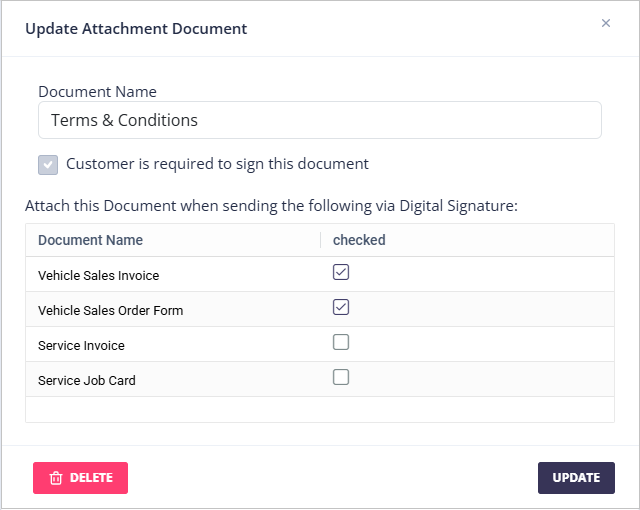
** Please note – for Service Invoices and Service Job Cards, these can only be sent from the DragonDMS**
Step 4: Viewing the Contact Record
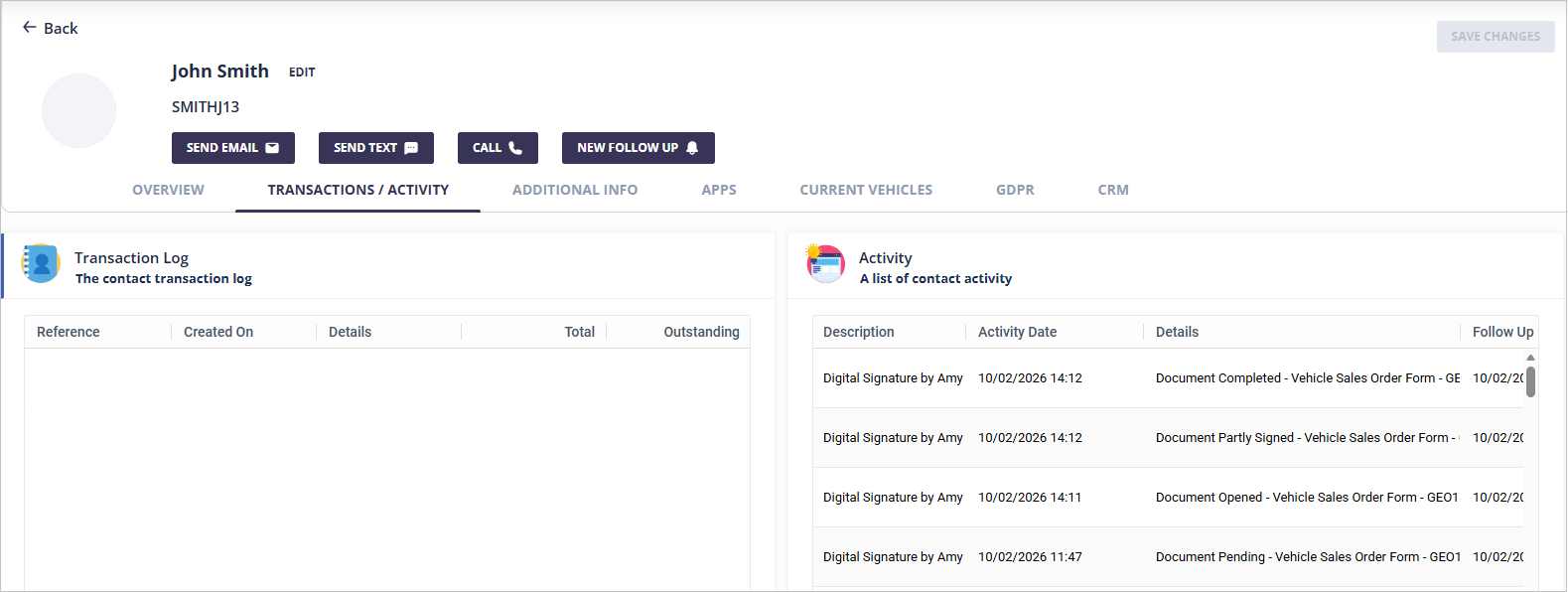
There is a log of all digital signature forms sent to a customer in their contact record. The details will display the status of the document:
Pending – Document has been sent but not yet viewed
Opened – Document has been viewed but not yet signed
Partially Signed – Document has been partially completed
Completed – All documents have been signed and submitted.
Once the document has been completed, you will receive an email with the signed documents attached.
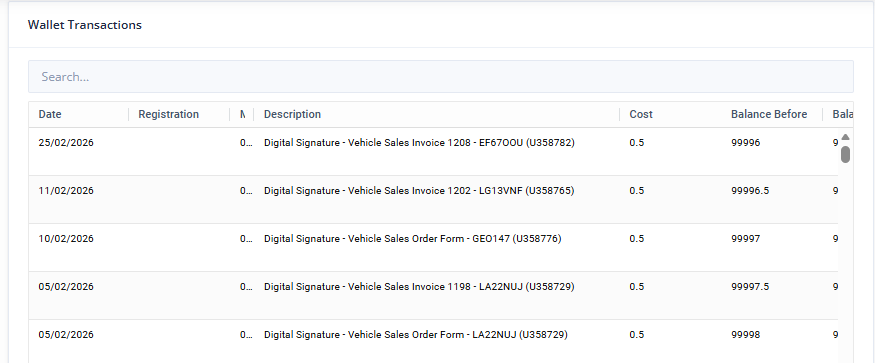
Step 5: The transaction will show in your Cash Wallet
A log of all Digitally Signed documents will be listed in your Wallet Transactions. You can view these by going to Settings > Accounts Settings > Wallet Transactions.
Adding your own branding to Signable
Login to your Signable account, go to Branding. Here you can upload your logo and select your branding colours.

Your branding will show on the email that the customer is sent, as well as on the Documents to be signed.
Sending Envelopes directly from Signable
For Dealers that want to send their own digital forms to prospects and customers, you have access to create your own templated forms in your Signable account.
View Signable help articles for advice on creating your own forms.
A charge for each Digital Envelope sent directly from Signable will be deducted from the Cash wallet. The transaction will be listed as a Digital Signature – Manually Sent via Signable and will list the email address the document was sent to.
If the email address of the recipient is recorded against a contact record in Dragon2000 Portal a record of the digital document will show in the contact record.