
Adding a Vehicle into Stock
From the menu options on the left hand side select Vehicles > Stock Book and then Actions from the top right hand side.
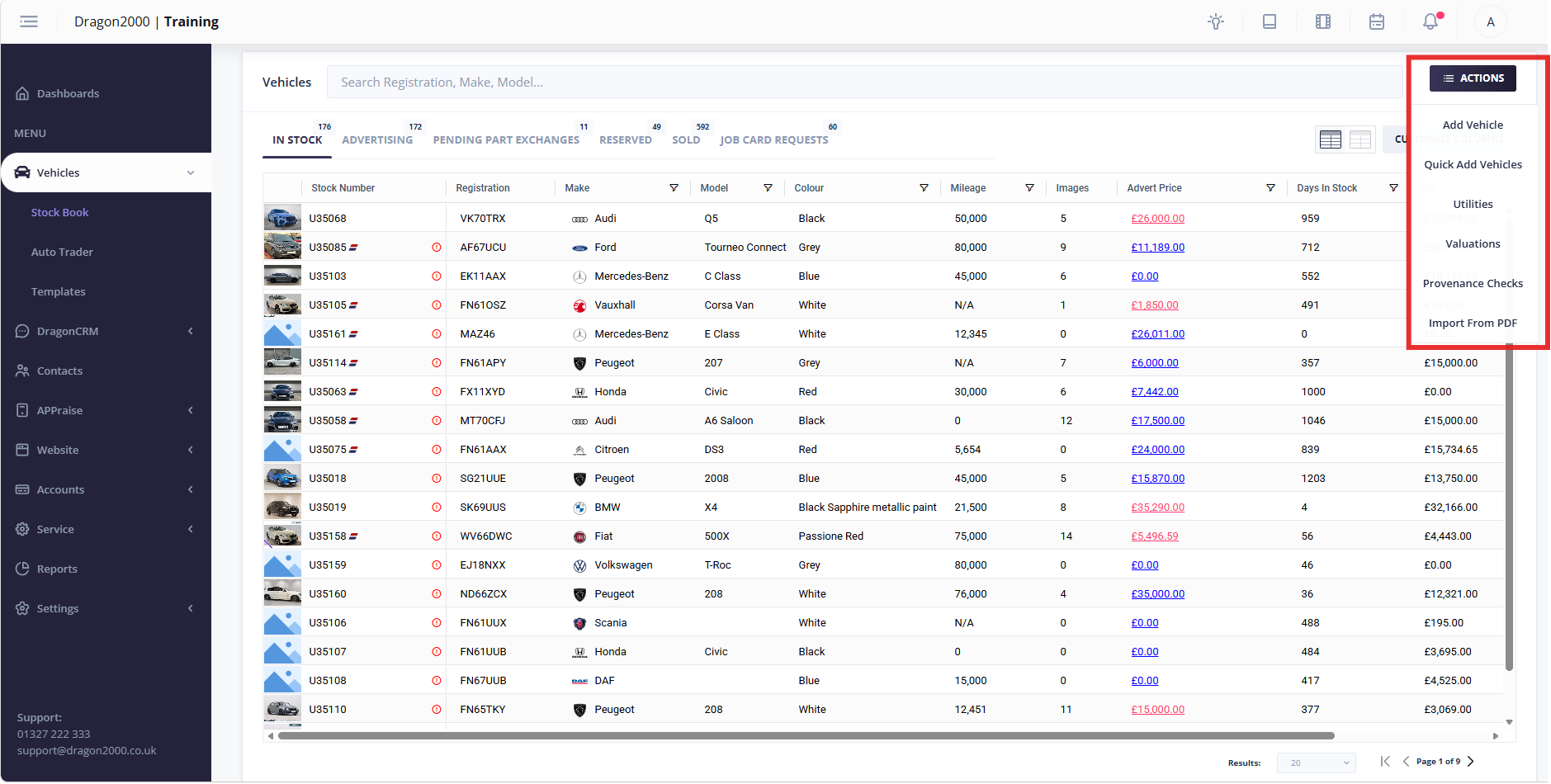
There are 3 different options to add vehicles into stock:
- Add Vehicles – This option will not only create the vehicle record, but will allow you to create the vehicle advert at the same time. This option will create the vehicle record one at a time and will take you through the following steps:
- Vehicle details – this will display the vehicle details from the Lookup.
- Specification – If you have selected to carry out a specification check, the standard spec and optional extras of the vehicle will be displayed. Tick any of the optional extras that the vehicle has.
- Valuations – If you selected to carry out a valuation check, this information will be displayed.
- Images – Add any images you would like to display on your vehicle advert.
- Advert details – Enter the vehicle description, advert price and select the advertisers where you would like the vehicle to be sent too. For more information on setting up feeds to online advertisers, click here.
- Please Note: If you do not have a registration for the vehicle, or a vehicle lookup cannot be completed, click Enter Details Manually and manually select the vehicle details
- Quick Add Vehicles – This option will allow you to create multiple vehicle records at the same time. All you need is the registration and mileage for each vehicle.
- Import from PDF – If your vehicles have been purchased from one of the listed Auction Houses, you can upload your PDF invoice to create the vehicle record. All of the associated purchase costs will also be added saving you time. Click here for more information on this feature.
Editing the Vehicle Details
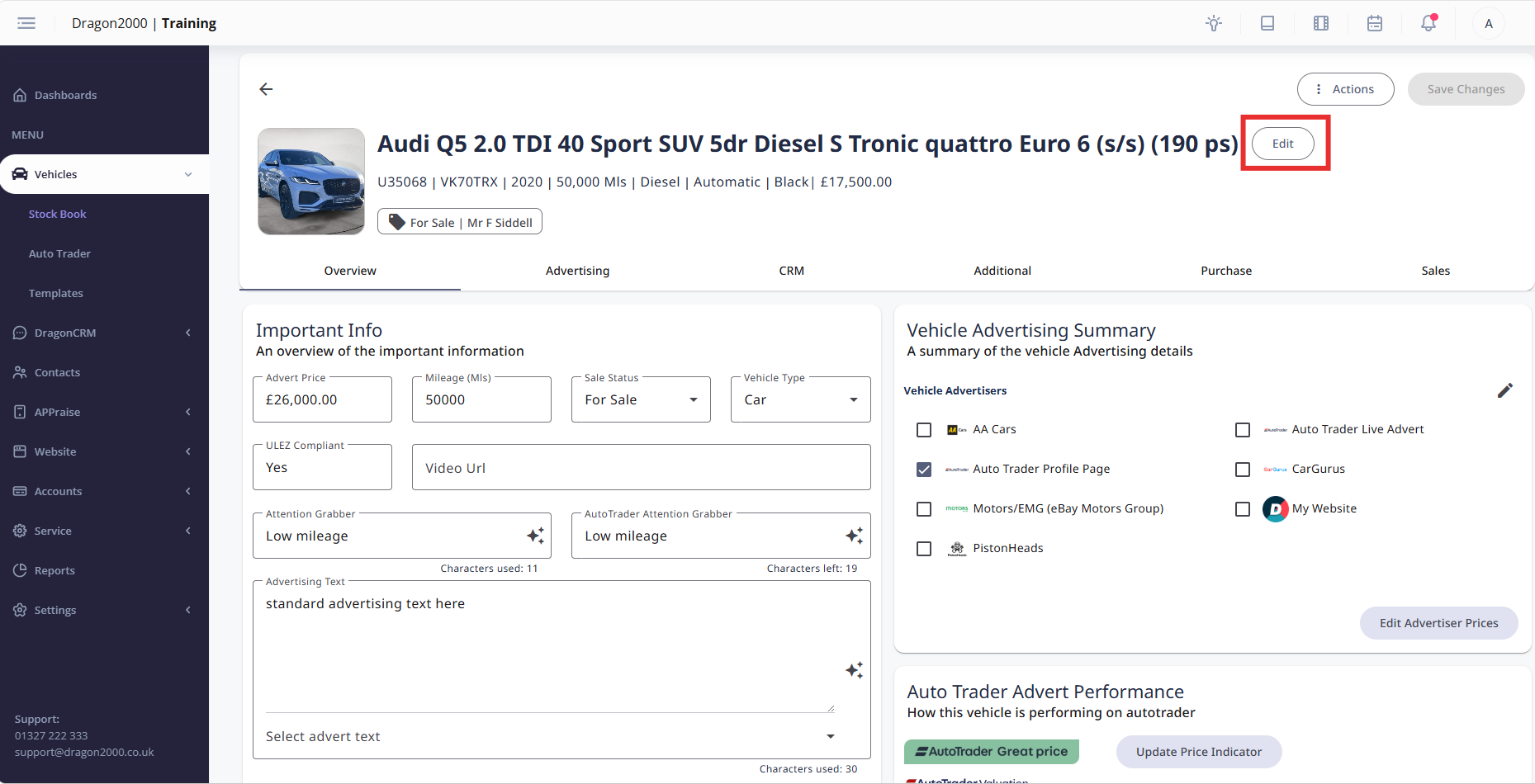
Once the vehicle has been added into stock, select the relevant vehicle to open the Vehicle Record.
To edit any of the vehicle details, click Edit next to the make and model of the vehicle. Select the relevant category and edit the details as required. Click Done once complete.
You also have the option to delete the vehicle record within this section.
Editing the Advert Information
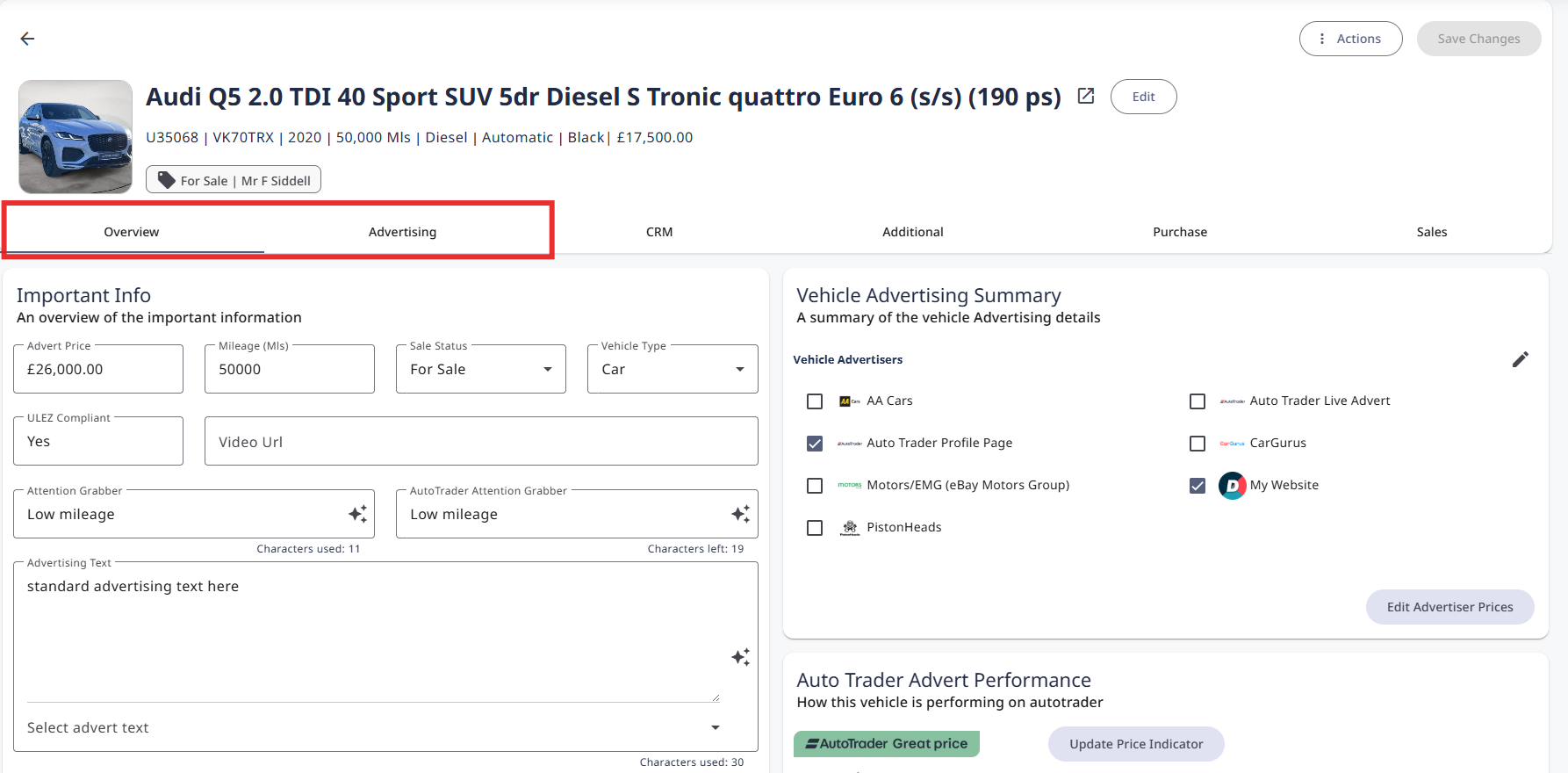
The advertising information can be entered or amended in the Overview and Advertising sections of the record.
Overview
Vehicle Record Improvements – This section will provide useful suggestions as to how the vehicle record could be improved. For example, adding images, adding attention grabbers.
Important info – This will show an overview of all of the important advertising information such as advert price, mileage advert text and attention grabbers. All of these can be amended in this section if applicable. Advertising text can also be auto generated using AI for just 10p.
Vehicle Advertising Summary – Breakdown of all of the third party advertisers and which ones have been selected for that record. Advertisers can be ticked and unticked as required.
Vehicle Images – The images uploaded to the record will be displayed and these can be viewed, re-ordered and added.
Auto Trader Advert Performance – Summary of how the vehicle is performing on Auto Trader including price indicators, number of views and more. This option is only available if your Auto Trader account has been linked to Dragon Portal.
DVSA Information – The most up to date MOT information for that vehicle including recall status is applicable and a link to view the full details.
Advertising
This section has several menu options to select from:
Overview – This will show you everywhere that vehicle has been ticked to advertise too, along with the attention grabbers, advertising text and advert price.
Images – Edit, re-order and add images. Upload images via a mobile device using the QR code or use the Image Editor to add banners and watermarks to your images.
Specification – If a Specification lookup has been completed, all standard and optional extras will be displayed. Optional extras can be manually added by clicking Add. A specification lookup can also be completed by clicking on Lookup.
Valuations – If a valuation check has been completed, the information will be displayed. Click Get Vehicle Valuation to carry out a valuation.
My Website – If you have a Dragon2000 hosted website, this section provides additional advertising details for your website only.
Auto Trader – If you have the Auto Trader advertising feed set up, this section allows you to enter further information specific to Auto Trader only. For example, Auto Trader Attention Grabbers and Top Features.
eBay – If you have the eBay advertising feed set up, this section allow you to enter further information specific to eBay only. For example, eBay title, subtitle, best offer etc.
Attachments – Add documents that can be displayed alongside the vehicle advert on your Dragon2000 hosted website.